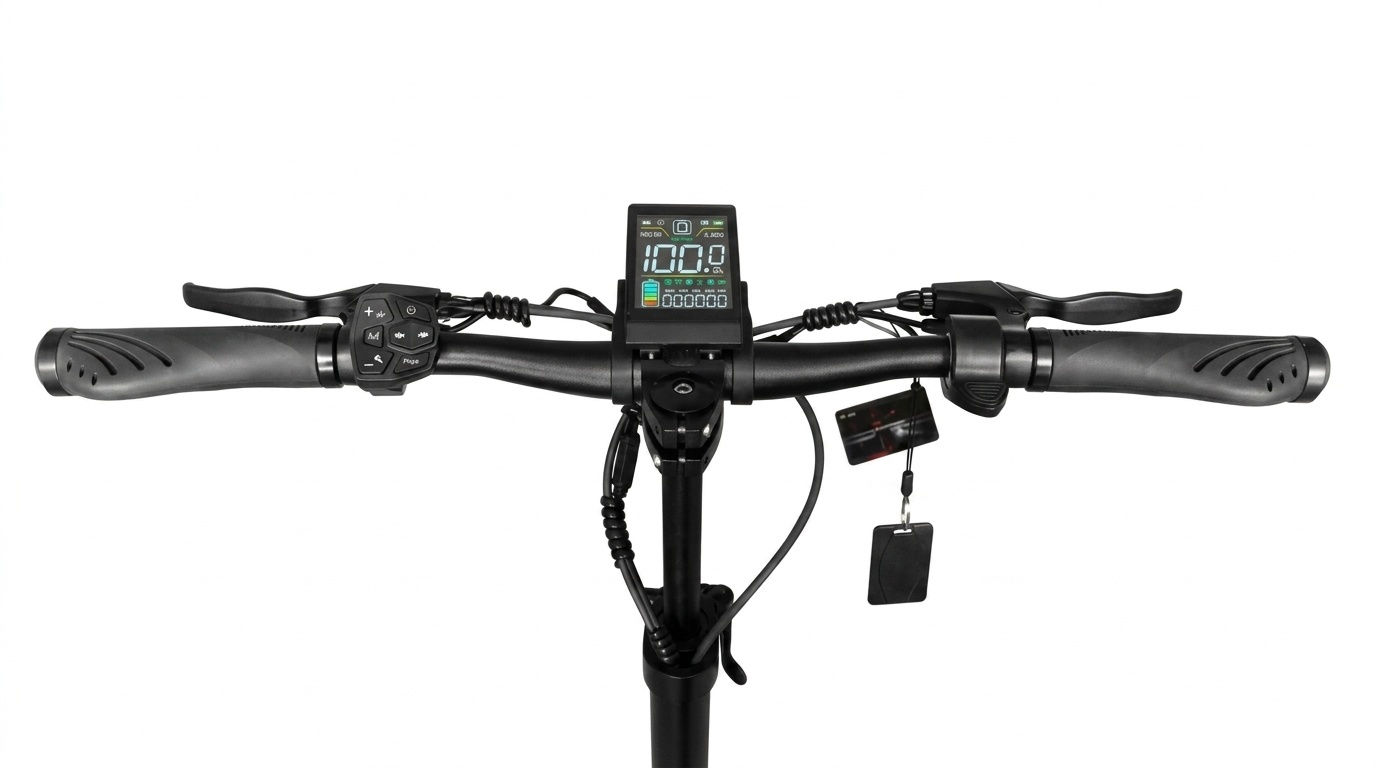
Joyor T10 NFC Smart Ignition System Overview
The Joyor T10 electric scooter features an advanced NFC (Near Field Communication) keycard ignition system integrated directly into its color LCD throttle display. Designed to prevent unauthorized access and theft, the NFC security framework requires a verified encrypted signal card before powering on the 52V dual-motor system. This comprehensive guide covers keycard programming, adding secondary cards, setting up smartphone NFC emulation, and executing emergency resets if cards are lost.
How the Joyor T10 NFC Ignition System Works
Unlike traditional key ignition cylinders that can be picked or bypassed mechanically, the Joyor T10 display unit contains an embedded RFID reader operating at the standard 13.56 MHz frequency. When the power button is turned on, the LCD display activates in a locked state, displaying a blinking “CARD” or lock icon. Rolling or throttling the scooter is disabled until a paired card is tapped against the sensor region.
Step-by-Step: Pairing New or Secondary NFC Cards
Every Joyor T10 comes with two pre-paired master NFC keycards from the factory. If you purchase additional replacement cards or need to re-pair existing ones, follow this step-by-step procedure:
- Enter NFC Programming Mode: Long press the Power button on the display until the screen turns on and shows the lock icon.
- Master Card Authentication: Hold your original master card against the NFC sensing area (usually located at the lower center or back of the LCD housing) until you hear a long beep.
- Add New Card: Immediately tap the new unpaired NFC card against the sensor. The display will emit two quick beeps, confirming the new card UID has been saved to the controller memory.
- Exit Setup: Wait 5 seconds without tapping. The display will auto-save and exit programming mode.
Setting Up Smartphone NFC Unlocking (Android & iOS)
For added convenience, riders can duplicate their physical Joyor T10 card key code to an NFC-enabled smartphone or smart ring:
Android Devices (NFC Wallet / Key Emulation)
- Download an NFC Key Emulator or use your phone’s built-in Wallet app.
- Scan your physical Joyor T10 card to read its unique 4-byte or 7-byte UID.
- Save the card profile to your phone and enable “Tap to Pay / Transit” default emulation.
- Tap your phone back against the T10 screen to unlock the scooter.
Apple iPhones (iOS Shortcut / Wallet Integration)
Due to iOS security restrictions on UID cloning, iPhone users can utilize the Apple Wallet transit card workaround or pair an encrypted third-party NFC sticker attached to the phone back.
Emergency Reset Procedure: Lost All NFC Cards
If both primary and secondary NFC cards are misplaced, follow this safety override to regain control of your scooter:
⚠️ Hardware Bypass Procedure (Card Lost)
- Disconnect the main battery pack by unscrewing the deck plate to prevent electrical arc.
- Unplug the 5-pin waterproof main cable connecting the handlebar display to the main controller.
- Wait 2 minutes to drain residual capacitor charge.
- Plug in a certified factory replacement Joyor T10 display unit (which comes with a pre-matched set of new NFC cards).
- Re-connect battery power and test system startup.
Joyor T10 NFC Troubleshooting & Diagnostics
| Symptom | Probable Cause | Solution |
|---|---|---|
| Display lights up but won’t accept tap | Incorrect tapping zone or phone case too thick | Tap card flush against the exact center of the screen housing; remove thick phone cases. |
| Screen displays E-06 when tapping card | Display-to-controller communication delay | Check main handlebar harness connector; ensure waterproof plug pins are fully seated. |
| Card beeps but throttle doesn’t respond | Brake cut-off sensor engaged | Verify brake levers fully spring back to home position (check Error Code E-04). |
🛒 Need Replacement NFC Cards or Displays?
Order original Joyor T10 encrypted NFC keycards and display replacement kits directly from our official store.